



How to Build an “Unhackable” Air-Gapped Backup System at Home
Ransomware attacks have turned into one of the most stubborn online dangers these days. Even folks at home with just a few devices can lose their files in a flash. Making an air-gapped backup setup—one that’s fully cut off from the web—serves as a solid shield against such problems. This guide walks you through building a tough air-gapped backup at home. It uses everyday tools and basic plans to guard your data from ransomware and other online attacks. I’ve seen friends panic after a simple email click wiped out their photos, so this matters a lot.
What Is an Air-Gapped Backup System?
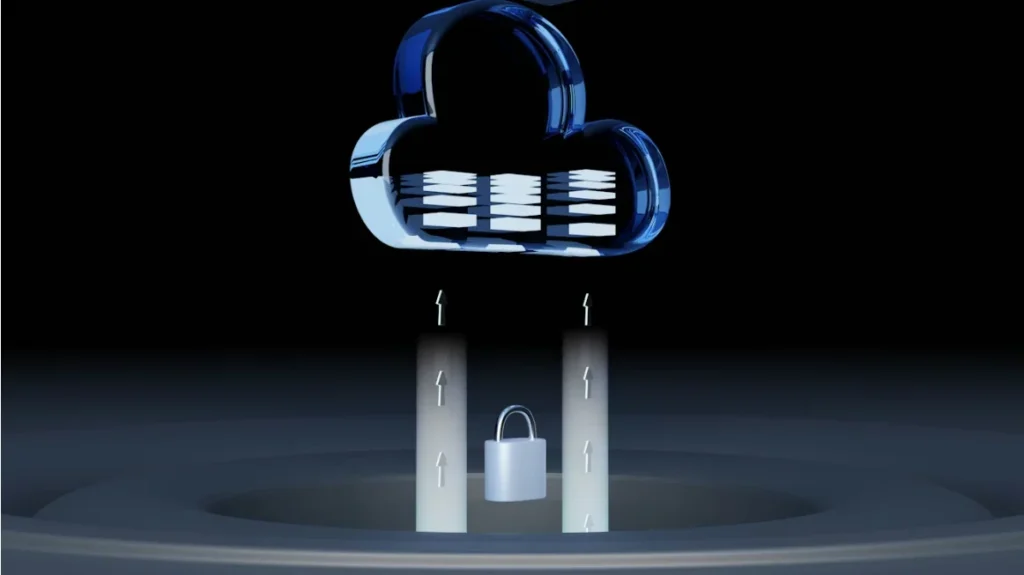
An air-gapped backup system means a storage plan that’s totally unlinked from any network. That includes Wi-Fi and the internet too. Since it’s offline, bad software can’t touch it from afar. This cutoff makes it a top choice for fighting ransomware.
Picture a safe that you only unlock when you’re right there with the key. That’s how an air gap works for your files. Cloud backups feel easy, but they stay linked and can get hit if your login or gadget falls to hackers. An air-gapped backup stays safe from web dangers, though. For instance, during a family trip last year, my cousin’s laptop got hit, but his offline drive saved all the vacation pics.
Why Air-Gapping Beats Cloud Storage
Cloud options often copy files on their own. This can let ransomware lock up everything across your gadgets before you spot the issue. But an air-gapped drive only links up when you plug it in by hand. So, bad stuff can’t spread without you knowing. It’s like keeping cash in a hidden drawer instead of a bank that might glitch.
How Does Ransomware Threaten Your Data?
Ransomware locks your files by scrambling them. Then it asks for money to fix it. It sneaks in via fake emails, bad downloads, or shady sites. Once it’s in your setup, it races through linked drives and shared spots.
These days, most ransomware goes after backup drives too. Attackers know people count on them to get back on track. That’s why you must keep backups away from your main gear.
Common Mistakes That Make Backups Vulnerable
Lots of users leave outer drives connected all day. Or they set up auto network copies without thinking. These can catch the infection during a hit. The best way is to unplug your backup drive right after you’re done. I once forgot and paid the price with a week’s work gone—lesson learned the hard way.
What Hardware Do You Need for an Air-Gapped System?
To set up a safe offline backup spot at home, you don’t have to buy fancy business gear. Just pick a handful of smart parts. They can change everything for the better.
External Drives or NAS Devices
Grab at least two big outer hard drives. One acts as the main one, and the other as a spare kept in a different spot. Solid-state drives, or SSDs, run quicker but cost more. Regular HDDs work great for everyday folks.
For a fancier option, look at a NAS device. It lets you pull the network or swap out drives by hand. In my setup, I use a simple two-drive pair, and it’s held up for years without a hitch.
A Dedicated Backup Computer
A special computer just for backups adds extra safety. This machine never touches the web or loads extra programs. See it as a clean workspace where only checked data goes in. Using an old laptop for this keeps things cheap and simple—I’ve got one from 2015 that’s perfect.
Write-Once Media Options
For keeping things safe over many years, try write-once stuff like Blu-ray M-DISCs or tape backups. They last a long time and can’t get changed once you’re done. This blocks ransomware from messing with them. It’s like etching your story in stone—permanent and tough.
How Can You Build Your Air-Gapped Backup Step by Step?
Putting together your air-gapped system takes no big tech know-how. You just need to be steady and careful.
Step 1: Prepare Clean Storage Devices
First off, clear out new drives with a full wipe. Skip the quick format. This gets rid of any sneaky hidden spots or old software bits that might cause trouble down the road. I always double-check this step; it saved me from a weird glitch once.
Step 2: Transfer Only Verified Data
Move files from a computer you’ve scanned well with fresh virus checkers. Don’t pull straight from USB sticks or odd sources without looking them over. Take your time here. Rushing can let junk slip in, and nobody wants that surprise later.
Step 3: Disconnect After Each Session
When the copies finish, pull out the drives safely and unplug them fast. Keep them in different real places if you can. Like one at home and another in a locked spot at a friend’s house. This spread-out trick has helped many during floods or moves—data stays safe no matter what.
Step 4: Use Encryption Wisely
Adding locks to your backups boosts privacy. But pick tools that work right on your machine without needing web keys. Write down the unlock words in a safe offline spot. That way, you won’t get stuck if tech fails. Remember, paper beats pixels when things go south.
How Often Should You Update Your Air-Gapped Backups?
How often you refresh your air-gapped backups hinges on how much your files shift. For home stuff, doing it once a week might do. But for work files or art projects that update daily, copy them every day. The real trick is sticking to a routine. Old backups can be just as bad as none, especially if a storm wipes your main drive—I’ve heard stories like that from neighbors.
Automating Without Losing Security
Auto tasks sound handy, but steer clear of network links that might bring back risks. Set up phone alerts or calendar notes to nudge you for regular checks instead. This keeps things manual and secure. In practice, I use a sticky note on my desk; it works better than any app for me.
What Are Best Practices for Maintaining Long-Term Security?
Offline setups need care over the years to keep working right and stay protected.
Regular Testing and Verification
From time to time, make sure your backups load up and hold good files. Broken copies won’t help in a pinch. Test them every few months, like checking smoke alarms. It’s boring, but it pays off—trust me, a quick peek caught a bad sector on my drive early on.
Labeling and Documentation
Mark each drive with clear tags. Add dates and lists of what’s inside. This helps you spot the right version fast later. Keep paper notes on lock codes and where things are stored. Put them in a safe that’s not on any online gadget. Simple labels have saved hours of hunting for me during busy times.
Physical Protection Measures
Keep drives far from hot spots, wet areas, strong magnets, or bright sun. For key money or legal papers, think about fire-safe boxes. These steps aren’t just for show; a garage fire once nearly took a buddy’s backups, but the safe held up.
Can You Combine Air-Gapping With Other Security Layers?
Sure, you can mix offline guards with extras like virus blockers on your devices and steady updates. It’s like stacking fences around your home instead of one thin wall. Cloud tools can handle easy copies of less important stuff. But don’t swap them for real offline holds when fighting ransomware. Layering like this feels overkill at first, but after seeing a coworker’s setup crumble, I added it all.
Cloud sync services may still play a role for convenience copies of non-critical files—but never treat them as substitutes for true offline storage when defending against ransomware attacks.
FAQ
Q1: What makes air-gapped backups safer than cloud storage?
A: Because they’re physically disconnected from networks, malware cannot reach them remotely—even if your main computer gets infected. Plus, in real life, this has stopped full data loss for thousands of users hit by big attacks like WannaCry.
Q2: How often should I update my air-gapped backup?
A: Ideally once a week for personal data or daily if handling sensitive work files that change frequently. Adjust based on your routine; for photos, monthly might even work if you’re not snapping daily.
Q3: Can I use USB flash drives instead of hard disks?
A: Yes, but flash drives wear out faster with repeated writes; external HDDs or SSDs are more reliable for long-term use. I’ve tried USBs for small jobs, but they fail quicker than expected after a year.
Q4: Should I keep my encrypted passwords online?
A: No—store decryption keys offline in printed form within a safe location to avoid losing access if systems fail. Digital storage tempts fate; paper in a drawer is foolproof.
Q5: Is building an air-gapped system expensive?
A: Not necessarily; even two mid-range external hard drives costing under $200 total can provide strong ransomware protection when used correctly. Shop sales, and you’ll spend even less—I’ve built mine for about $150.