



What data recovery software can realistically do
Data recovery software is most useful when a file has been deleted, a partition table has been damaged, a memory card has been formatted, or a file system is still readable enough to scan without increasing the damage. It is not a magic undo button. The practical question is whether the original data, file records or backup versions still exist in a place that can be read safely. Microsoft’s Windows File Recovery documentation explains why recovery can work in some deletion cases: when a file is deleted, Windows may mark its storage space as free while the file data can remain until it is overwritten. (support.microsoft.com)
That recovery window may be brief. Installing recovery software on the same drive, saving recovered files back to the source disk, or continuing to use the affected computer can overwrite the data that remains. For readers comparing apps, utilities and storage practices, RoadsNews’ Software coverage follows the same principle that matters here: understand the failure before relying on a product claim.
Why the storage device changes recovery odds
The same data recovery software can deliver very different results on a hard drive, USB stick, SD card, SSD, phone or cloud-synced folder. Marketing pages often present recovery as a checklist of software features, but the physical and logical behavior of the storage medium usually has more influence on the outcome.
Hard drives and removable cards
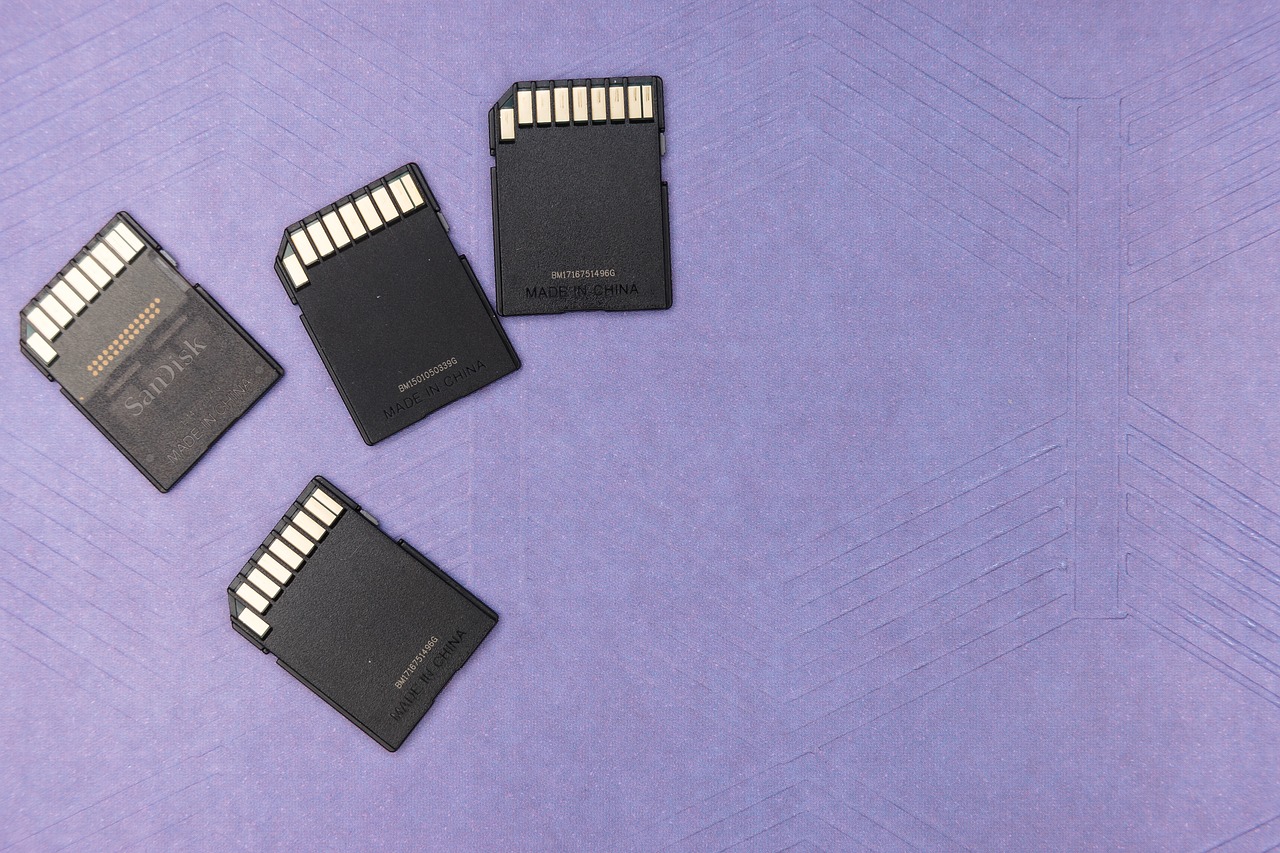
Traditional hard disk drives often give consumer recovery tools the best chance after accidental deletion because deleted content may remain in place until the operating system writes new data over it. Some SD cards and USB flash drives can behave in a similar way, although removable media may also suffer from controller faults, wear or file-system corruption that software cannot fully resolve.
For formatted cards, a deep scan may identify file signatures even when folder names and original paths are no longer available. That is why recovered photos may return with generic names, missing timestamps or duplicated thumbnails. The content may be recoverable even when the original organization is not.
SSDs and the TRIM problem
Solid-state drives introduce a major limitation. Microsoft’s Windows documentation describes file-delete notification, also known as TRIM or unmap, and notes that NTFS can send TRIM during delete operations. In practical terms, the operating system may tell an SSD that certain blocks are no longer in use, allowing the drive to manage or clear them internally. (learn.microsoft.com)
That does not make every SSD case hopeless. Software can still help when the issue is a deleted partition, a damaged file system, a removable SSD where TRIM was not passed through, or a device image created before further writes occurred. Users should still be cautious about any tool that promises routine undelete results from a modern internal SSD after normal deletion and continued use.
Encrypted devices, phones and cloud sync
Encrypted storage changes the problem. If the encryption key, account credential or recovery key is missing, ordinary recovery software cannot simply bypass the encryption. Phones also restrict low-level access more tightly than desktop drives, so cloud backups, device backups, version history and account recovery may be more realistic than scanning the phone’s storage directly.
Cloud sync can help or hurt. A deleted file may still be available in a cloud trash folder, version history or another device that has not synced yet. If the deletion syncs across devices and the trash retention period expires, desktop recovery tools may have little useful data to scan.
Preserve the device before installing anything
The first step after file loss is not to download a recovery tool. It is to stop changing the affected storage. Every write operation can replace data that the software is trying to recover. A safer workflow is straightforward:
- Stop using the affected computer, card or external drive as soon as possible.
- Do not install recovery software on the same drive where the files were lost.
- Do not save recovered files back to the source device.
- If the files are valuable, create a sector-by-sector image to another drive and scan the image instead.
- If the device makes unusual noises, overheats, disconnects repeatedly or is not detected, stop and consider a professional lab.
This preservation step is especially important for business records, legal material, creative project files and incident response. A fast but careless scan can turn a recoverable case into a partial recovery.
Features that matter more than marketing labels
Many data recovery software pages use the same phrases: deep scan, advanced algorithm, unlimited recovery and professional grade. Those labels matter less than whether the tool supports the file system, device type and failure pattern involved. A practical comparison should focus on capabilities that can be verified before purchase.
| Feature to check | Why it matters | What to verify before paying |
|---|---|---|
| Read-only scanning | The tool should not repair, rebuild or write to the affected disk unless the user clearly chooses that action. | Look for an option to scan without modifying the source and to recover files to a separate drive. |
| Disk image support | Scanning an image reduces risk when a drive is unstable or evidence must be preserved. | Confirm whether the software can create and scan raw images or common forensic image formats. |
| File system support | NTFS, exFAT, FAT32, APFS, HFS+, ext4 and other systems store metadata differently. | Match the tool to the operating system and storage format used when the files were lost. |
| Preview before recovery | A preview helps distinguish real recoverable files from names that only remain in metadata. | Check whether documents, photos, videos and archives can be previewed before purchase. |
| SMART and device health checks | Continuing to scan a failing drive can accelerate failure. | Use health warnings as a reason to image first or stop, not as a reason to keep rescanning. |
| Clear licensing limits | Some tools show files for free but charge to save them. | Check file-size limits, device limits, subscription terms and refund rules. |
The most reliable sign is not a dramatic progress bar. It is whether the software can show intact previews, preserve folder structure where metadata still exists, and recover to a separate destination without writing to the problem drive.
When software is the wrong answer
There are situations where installing data recovery software is not only unhelpful but risky. A clicking hard drive, a dropped external disk, water damage, burnt electronics, repeated disconnects or a drive that appears with the wrong capacity can point to hardware failure. In those cases, a software scan may stress the device while producing little useful data.
Ransomware cases also require caution. Consumer recovery utilities are not a substitute for incident response, malware containment or backup restoration. CISA’s StopRansomware guidance advises organizations to maintain offline, encrypted backups and to regularly test backup procedures, because some ransomware variants try to find, delete or encrypt accessible backups. (cisa.gov) See also: AI.
Another wrong use case is secure deletion reversal. If data was properly sanitized, normal recovery is not the goal and should not be expected. NIST SP 800-88 Revision 2, published on September 26, 2025, describes media sanitization as a process intended to make access to target data infeasible for a given level of effort, and it superseded the 2014 Revision 1 guidance. (csrc.nist.gov)
Recovery, backups and sanitization are different disciplines
Data recovery, backup and sanitization are often discussed together, but they solve different problems. Recovery tries to read what still exists after deletion, corruption or device failure. Backup creates a separate copy before the loss happens. Sanitization intentionally makes data unrecoverable before disposal, reuse or transfer.
That distinction matters for software buyers. A recovery app can be a useful emergency tool, but it should not be the main continuity plan for a business. A stronger approach is layered: versioned cloud storage for everyday mistakes, offline or immutable backups for ransomware resilience, tested restore procedures for operations, and recovery software for cases where files were lost before backup coverage existed.
For individuals, the same logic applies at a smaller scale. Keep important documents in at least two places, do not keep the only backup permanently attached to the computer, and test that the backup opens. A recovery utility is a last line of defense, not the first one.
A practical checklist before choosing a tool
Before comparing brand names, answer these questions. They will narrow the field and reduce the chance of paying for software that cannot solve the actual problem.
- What happened? Accidental deletion, quick format, lost partition, corrupted file system, failing drive and ransomware all require different responses.
- What device is involved? A spinning hard drive, internal SSD, external SSD, SD card and phone have different recovery limits.
- Has the device been used since the loss? The more it has been used, the greater the overwrite risk.
- Is the device physically healthy? If it is noisy, unstable or not recognized correctly, image it or stop.
- Is there a backup or version history? Restoring from a clean backup is usually safer than carving fragments from damaged storage.
- Can the tool preview the files? File names alone are not proof that usable content remains.
- Where will recovered data be saved? Always choose a separate drive with enough free space.
If a tool cannot explain these limits clearly, treat that as a warning sign. Good recovery software should help users avoid destructive mistakes, not push them into a scan that writes to the same drive or implies certainty where none exists.
Frequently asked questions
Can data recovery software recover permanently deleted files?
Sometimes. Permanently deleted usually means the file is no longer in the recycle bin or trash, not that the data has been physically erased. Recovery is more likely if the storage blocks have not been overwritten or cleared by SSD behavior such as TRIM. It is less likely after heavy use of the device, full formatting, secure erase or loss of encryption keys.
Is free data recovery software safe to try?
Some free tools are useful, including utilities from established software publishers and operating-system vendors. The safety question is how the tool behaves. It should be downloaded to a different drive, run in a way that does not write to the source device, and recover files to separate storage. Avoid tools that require disabling security protections, make extreme guarantees or hide recovery limits until after a long scan.
Should I scan the original drive or make an image first?
If the data is important, make an image first. Scanning an image protects the original device from repeated reads and allows multiple tools to analyze the same preserved copy. For a healthy USB stick with low-value files, a direct read-only scan may be acceptable. For a failing drive, business records or legal material, imaging is the safer starting point.
Why do recovered files sometimes fail to open?
A recovery tool may find a file name or signature even when some of the underlying content has been overwritten, trimmed, encrypted or fragmented beyond reconstruction. That is why preview support matters. A file appearing in scan results is only a candidate for recovery; it is not proof that the full content is intact.
What is the most important rule after data loss?
Stop writing to the affected storage. Do not install software on it, do not save new files to it, and do not recover files back to it. Preserving what remains is the single step that improves the odds before any tool is chosen.